
Turnstone Guide
Everything Turnstone can do
Turnstone is an AI workspace that helps you complete everyday work across your files, conversations, browser, and connected apps.
01
Overview
What Turnstone is
Turnstone is an AI workspace that helps you complete everyday work across your files, conversations, browser, and connected apps. Instead of moving information between separate tools or repeatedly uploading documents to a chatbot, you can give Turnstone access to a folder on your computer and work with everything inside it directly.
You can ask questions, research topics, find information across your files, create and edit documents, organize folders, and take actions in other apps — all through a conversation with Turnstone. You decide what Turnstone can access and how much freedom it has to act.
Bring your own subscription or API key. Turnstone supports BYOS (Bring Your Own Subscription) with ChatGPT and Claude, as well as BYOK (Bring Your Own Key) for OpenAI, Anthropic, and supported open-source models. You choose the AI provider that powers your workspace.
02
AI Models & Providers
Turnstone is not tied to a single AI provider. You can use an existing ChatGPT or Claude subscription, connect an OpenAI or Anthropic API key, or access supported open-source models.
You decide how much control you want over which model runs each chat. A Simple / Advanced toggle in Models settings switches between an easy quality picker and precise, manual model selection.
03
Local Files & Folders
Turnstone works directly with the files and folders on your computer. It does not just read or discuss them — it can create new files, edit existing ones, rename and move items, reorganize folders, and delete files when your selected permissions allow it.
Choose a folder as your workspace and Turnstone can work with everything inside it. Any changes Turnstone makes are applied to the actual files on your computer, so you do not need to upload documents individually, copy responses out of a chatbot, or make the changes yourself.
The file explorer drawer keeps your selected folder visible beside the conversation. You can browse its folders, open files directly, or drag a file from the drawer into the chat when you want Turnstone to focus on it.
Turnstone also stays aware of the file you currently have open, so the chat already knows which file you're looking at — you can ask about “this document” without naming it.
You can ask Turnstone to:
- “Update the dates in this rental agreement.”
- “Create a project brief from these meeting notes and save it in this folder.”
- “Rename and organize these receipts by year and category.”
- “Find every document that mentions this client and create a summary.”
- “Convert these notes into a polished Markdown document.”
04
Safety & Permissions
Working with local files requires trust. Turnstone gives you clear permission modes so you can decide whether it may only inspect your work, ask before making changes, or act independently.
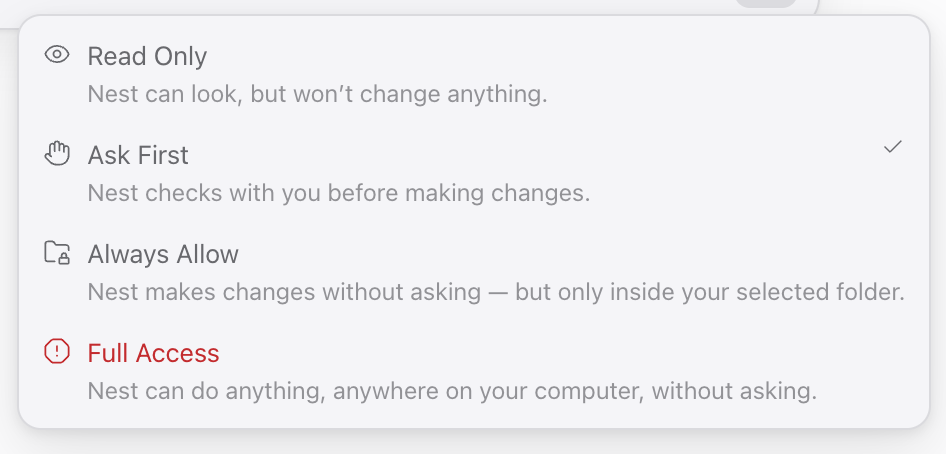
Read Only
Turnstone can read and analyze information, but it cannot change anything on your computer. Even if a request accidentally asks it to edit, move, or delete something, those actions remain blocked.
Ask First
Turnstone can read the selected folder and prepare changes, but asks for your approval before it performs protected actions.
Always Allow
Turnstone can work independently inside the folder you selected — creating and changing files without stopping to ask. It still cannot reach beyond that folder: the workspace acts as a sandbox, so the rest of your computer stays off-limits and the agent can't touch, move, or break anything outside it.
Full Access
Full Access removes the sandbox entirely — Turnstone can read and act across your whole computer, no matter which folder is selected. This is powerful but genuinely risky: an agent with Full Access can reach and change files anywhere, so turn it on deliberately and only when you understand the consequences.
Read Only, Ask First, and Always Allow keep Turnstone confined to the selected folder. This boundary means you can give Turnstone useful access to a project without exposing the rest of your computer.
05
View & Edit Files
Turnstone is not limited to discussing your files in a chat. It includes built-in ways to open, inspect, and work with common document and media formats, helping you stay in the same workspace while completing a task.
You can read and write Markdown documents, inspect PDFs, view images, work with CSV data, and handle common office documents. The available editing experience depends on the file type: some formats can be edited directly, while others are displayed for viewing and analysis.
Editor Mode (Beta)
Editor Mode turns Turnstone into an AI-first document workspace. It adds a dedicated editing experience where you and Turnstone can work on a file together, moving between conversation and direct editing without leaving the app.
The idea is simple: developers have integrated environments where they can write, inspect, and collaborate with AI. Editor Mode brings that same kind of workspace to documents and everyday knowledge work.
06
Connected Apps
Turnstone connects to the apps where your work already lives — Gmail, Google Calendar, Google Drive, Slack, Notion, and Linear — so you can search for information, bring it into the conversation, and combine it with files on your computer without leaving the workspace.
Connected apps aren't limited to search. Where supported, Turnstone can also take action — for example, preparing an editable Gmail card that you review, add attachments to, and send yourself. Turnstone clearly separates reading information from actions that create, update, or send something.
You can connect multiple accounts for the same app — like personal and work Gmail — and choose which one Turnstone uses for each action.
07
Browser Automation
Turnstone can work with your browser to complete tasks on websites. It can inspect a page, navigate through a workflow, and interact with the same browser session you are using.
You can follow what Turnstone is doing from inside the app, making browser automation visible rather than sending the work to an unseen background process.
08
Chats & Side Chats
Chats are where you think, plan, research, and complete work with Turnstone. A chat keeps the messages, files, and context for a task together so you can return to it later.
Side Chats are designed for the quick questions that come up while you are already working on something important. A Side Chat begins with the context of the main conversation, but continues separately. You can explore another question without interrupting the main task or changing its conversation history.
Think of a Side Chat as a temporary copy of your current conversation: it understands what you were discussing, but gives you a separate space to think.
09
Memory
Memory helps Turnstone build useful context about you across different conversations. It can remember information such as your preferences, responsibilities, recurring projects, and the way you like to work, then apply that context when it becomes relevant later.
This means every new chat does not have to begin from zero. Turnstone can become more helpful over time without requiring you to repeat the same background information in every conversation.
10
Automations
Automations let Turnstone perform recurring work on a schedule. You can set up a daily, weekly, or otherwise repeating task and choose what Turnstone should do each time it runs.
This is useful for work that matters but is easy to forget, such as preparing a daily briefing, reviewing new information, organizing recurring reports, or checking for items that require attention.
11
Skills
Skills are reusable instructions that teach Turnstone how to handle a particular kind of work. A skill can capture a preferred process, specialized knowledge, quality standards, or a repeatable workflow so you do not need to explain it again every time.
For example, a skill could teach Turnstone how your team prepares client briefs, how you review a particular type of document, or how you want recurring research summarized.